
Print Size Calculator
Enter your image's width and height in pixels, or choose the photo and the calculator reads them for you. See how big it prints at your target DPI and how it fits common photo and paper sizes.
What is the Print Size Calculator?
It works out how large you can print an image while keeping the DPI you want, and what DPI the image gets on common print sizes. You enter the image's width and height in pixels (or choose the photo) and a target DPI. It shows the largest print size, the largest common size that meets your target, and the DPI, crop and pixels needed for 4 x 6, 8 x 10, A4, other sizes and any size you add.
Can your photo be a sharp 16 x 20?
You have a 4000 x 3000 pixel photo, about 12 megapixels, and you'd like it on the wall at 16 x 20 inches. It looks crisp on your screen, so any size seems possible.
A print spreads those pixels over paper, though. At 16 x 20 the same photo gets about 188 pixels per inch; at 8 x 10 it gets 375. Shutterfly's own guidelines put it plainly: images "may appear clear on screens but still print poorly if resolution is low."
The calculator shows the largest print that keeps your target DPI (13.33 x 10 in at 300 DPI for this photo) and the DPI on each common size, so you can choose a size before you order. It can't judge focus or noise, and it can't add detail the photo doesn't have, so check your print lab's own requirements too.
How to use the calculator
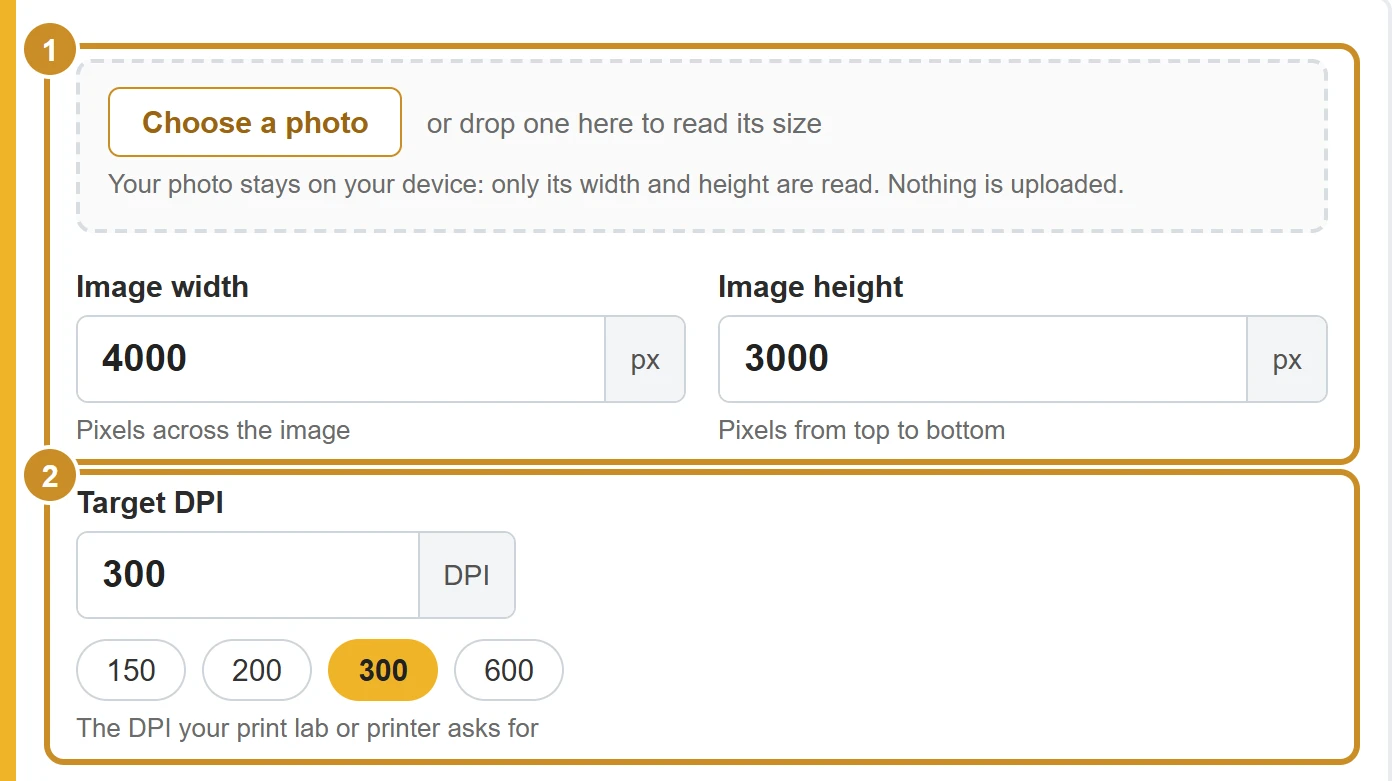
- Step 1: Select Choose a photo (or drop the photo on that box) and the calculator fills in its size. The photo stays on your device: only its width and height are read, and nothing is uploaded. You can also type Image width and Image height in pixels; 4,000 and 4000 px both work. Use the file you'll actually upload: a copy sent through a messaging app may be smaller.
- Step 2: Set the Target DPI: tap 150, 200, 300 or 600, or type the DPI your print lab asks for.
- Step 3: Read the results. They update as you type, and the copy button puts the largest print size on your clipboard. The next section explains each part.
Your results, explained
The image shows the example the calculator starts with, a 4000 x 3000 pixel photo and a 300 DPI target, with a 24 x 36 in poster added as your own size.
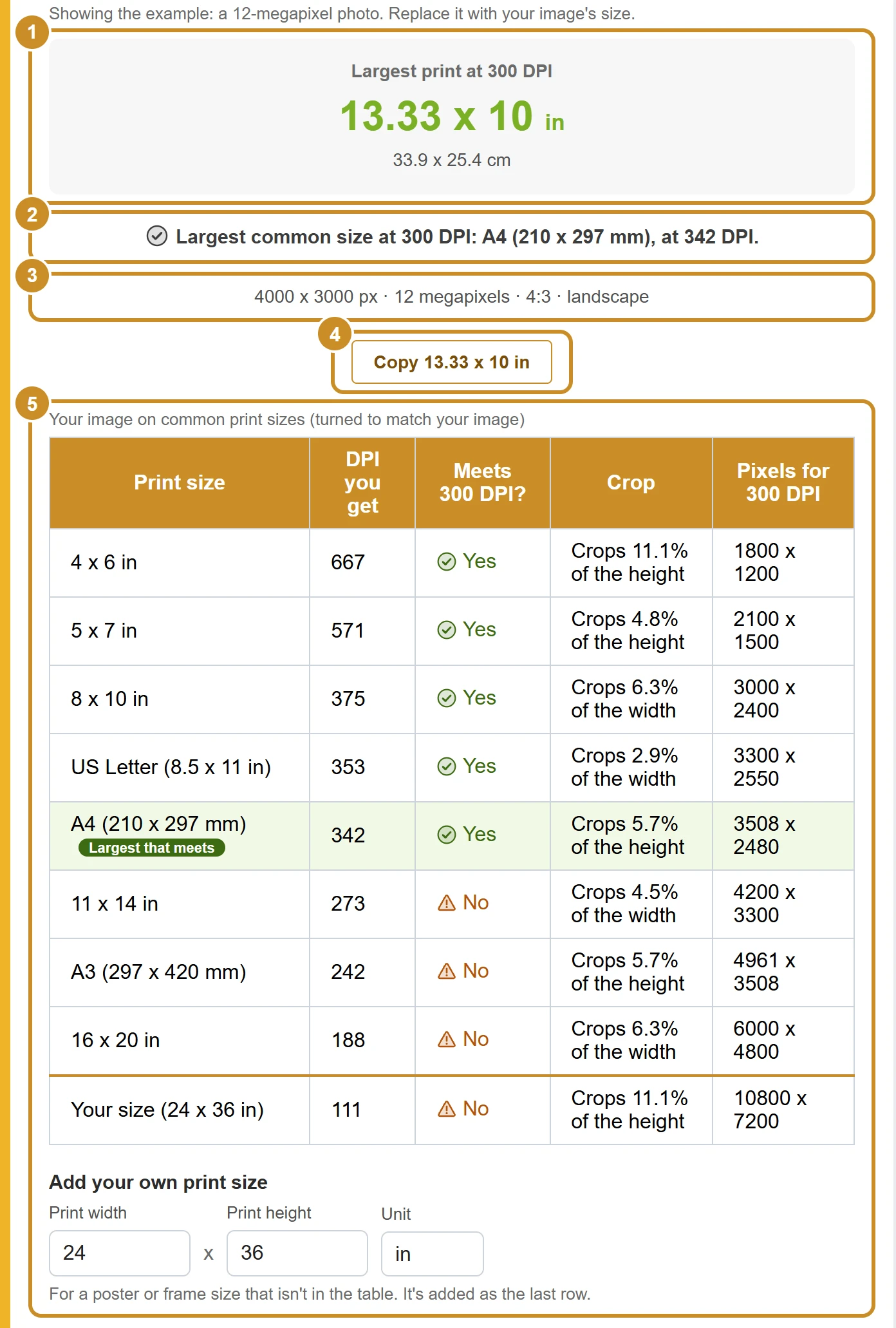
1. Largest print at 300 DPI: 13.33 x 10 in
The image's width and height divided by your target DPI: 4000 ÷ 300 = 13.33 in and 3000 ÷ 300 = 10 in (33.9 x 25.4 cm). Any print up to this size keeps at least 300 DPI.
2. Largest common size: A4 (210 x 297 mm)
The biggest size in the table, by paper area, that still meets your target: 342 DPI here. It's also marked in the table. If no size meets the target, this line says so and gives the DPI of the smallest size.
3. Your image: 4000 x 3000 px · 12 megapixels · 4:3
The pixel count, the size in megapixels and the shape. The shape decides how much gets cropped on a print with a different shape: 4:3 here, while most photo prints are 2:3, 5:7 or 4:5.
4. Copy 13.33 x 10 in
Copies the largest print size as text, ready to paste into a print order or a message. The label follows your numbers.
5. Common print sizes, e.g. 8 x 10 in: 375 DPI
For each size, the DPI your image gets when it fills the whole print, whether that meets your 300 DPI target, how much is cropped, and how many pixels the print needs at 300 DPI. On 8 x 10, crops 6.3% of the width. Under the table you can add your own size, like a poster or frame, in inches, cm or mm; it appears as the last row.
Example: will a 12-megapixel photo make a sharp 16 x 20?
Take the example photo, 4000 x 3000 pixels, and a 300 DPI target (an illustrative case). It's a landscape photo, so the calculator turns 16 x 20 sideways to 20 x 16 inches.
Across: 4000 ÷ 20 = 200 DPI
Down: 3000 ÷ 16 = 187.5 DPI
The print gets the smaller one: about 188 DPI, below the 300 DPI target
To fill 20 x 16, the photo is scaled until the height fits, so the extra width is trimmed: crops 6.3% of the width. For 300 DPI at this size you'd need 6000 x 4800 pixels.
So you have three choices: print smaller (8 x 10 gets 375 DPI, and the largest print at 300 DPI is 13.33 x 10 in), lower your target if your lab accepts it (at 200 DPI this photo prints up to 20 x 15 in), or use a version of the photo with more pixels.
How the calculator works it out
DPI here means how many of the image's pixels go into each inch of paper. Everything follows from that.
largest print (inches) = pixels ÷ target DPI, for the width and the height
DPI on a print size = pixels ÷ print inches, for each side; the print gets the smaller of the two
crop = the part of the other side that doesn't fit at that DPI
pixels for a print = print inches × target DPI, rounded to whole pixels
largest common size = the biggest listed size, by paper area, that meets your target
Print sizes are turned to match your image: a landscape photo is shown on landscape prints. A4, A3 and sizes you add in mm or cm are converted with 1 inch = 25.4 mm = 2.54 cm. The table rounds DPI to whole numbers, but whether a size meets your target is decided on the exact value.
Match the shape to avoid cropping
A print can only show the whole photo when both have the same shape. Your example photo is 4:3; most print sizes aren't:
- 4 x 6 in: 2:3
- 5 x 7 in: 5:7
- 8 x 10 in: 4:5
- US Letter (8.5 x 11 in): 17:22
- A4 (210 x 297 mm): 1.41:1
- 11 x 14 in: 11:14
- A3 (297 x 420 mm): 1.41:1
- 16 x 20 in: 4:5
When the shapes differ, the print either crops part of the photo (the calculator assumes this, so the print is filled edge to edge) or leaves white bands. Many print labs let you choose; check their ordering preview before you pay.
To decide the crop yourself, resize the photo to the print's exact shape first: the Image Pixel Converter does this on its Print size tab (for example 4 x 6 in at 300 DPI), shows what will be trimmed before you save, and keeps the photo on your device.
Before you order a print
These catch most print-size surprises:
Enlarging the image in an editor
Making an image bigger adds pixels but not detail. Shutterfly's guidelines also warn that raising the resolution with software can lower the print quality.
Changing only the DPI number
Setting 300 DPI in an editor without changing the pixels only changes the print size. It doesn't make the print sharper.
Using a smaller copy of the photo
Photos sent through messaging apps or saved from social media may be smaller than the original. Enter the pixels of the exact file you'll upload.
Forgetting the crop
If the shapes differ, part of the photo is trimmed. Check the crop column and the lab's preview.
Quick checklist
- Enter the pixel size of the file you'll upload.
- Set the target DPI your lab or printer asks for.
- Pick a size that meets it, or decide a lower DPI is fine for this print.
- Check the crop, or crop the photo yourself first.
- Look at the lab's preview before you order.
Frequently asked questions
How big can I print a 12 megapixel photo?
A 12 megapixel photo of 4000 x 3000 pixels prints at 13.33 x 10 inches at 300 DPI, or 20 x 15 inches at 200 DPI. Other 12 megapixel shapes give slightly different sizes, so enter your own width and height.
What size can I print 3000 x 2000 pixels?
10 x 6.67 inches at 300 DPI, or 20 x 13.33 inches at 150 DPI. At the same DPI, a print can't be bigger without each pixel covering more paper.
How many pixels do I need for an 8 x 10 print?
2400 x 3000 pixels for 300 DPI (portrait). For a 4 x 6 print it's 1200 x 1800 pixels. The table in the calculator shows this for every size at your target DPI.
Why does my 4 x 6 print cut off part of the photo?
Because the shapes differ. A 4:3 photo is a little squarer than a 4 x 6 print (2:3), so filling the print crops 11.1% of the height of the photo. Choose a print with the same shape as your image, or crop it yourself before ordering.
How do I find my photo's size in pixels?
Use the Choose a photo button in the calculator: it reads the width and height for you. You can also look in the file's details: on Windows, right-click the file, choose Properties, then Details; on a Mac, open it in Preview and choose Tools, then Show Inspector.
Is my photo uploaded when I choose it?
No. Your browser opens the photo on your device and the calculator reads only its width and height. Nothing is uploaded, saved or sent to our server, and the photo is let go as soon as the size is read.
Does changing the DPI in Photoshop make my print sharper?
No. If you only change the DPI number and keep the same pixels, the image just prints at a different size. Sharpness comes from having enough pixels for the size you print.
What DPI should I use?
Use the DPI your print lab or printer asks for. As a guide, this site uses 300 DPI for professional print, 150 DPI for drafts and everyday office printing, and 600 DPI for line art and very fine text. Set it as the target DPI and the calculator tells you which sizes meet it.
Is DPI the same as PPI?
For this calculation, yes. PPI (pixels per inch) is the image's pixels spread over the paper, which is what the calculator works out. DPI is often used for the same thing, and print shops usually say DPI.
Source for the Shutterfly quote and guidance: Shutterfly, Photo Quality Guidelines for Optimal Prints, checked 22 November 2026.